Frequently Asked Questions
Can I use Facebook Debugger for Twitter content?
No, Facebook Debugger is specific to Facebook content properties only. To debug Twitter content, you should utilize Twitter's own card validator tool to ensure proper display and functionality on the Twitter platform.
What are Facebooks policies for debugging and testing apps?
Facebook provides a comprehensive set of guidelines and tools for developers to debug and test their apps. Developers can utilize the Facebook Developer Dashboard, Graph API Explorer, and Test User accounts to ensure proper functionality and troubleshoot any issues before deployment. Additionally, they can access detailed documentation and community support for assistance in debugging and testing processes.
Why does Facebook Debugger show an error message?
The Facebook Debugger may display error messages due to various reasons such as missing meta tags, caching issues, or improper Open Graph markup. Invalid URLs, server problems, or changes in Facebook's API can also trigger error messages in the Debugger tool. Regularly using the Debugger can help identify and resolve these issues promptly.
What is the Facebook Debugger API used for?
The Facebook Debugger API is utilized to scrape and troubleshoot issues related to how a link appears on Facebook, ensuring accurate preview information such as title, description, and image. It helps developers optimize content shared on the platform for better visibility.
Why is my Facebook app not loading in debug mode?
There could be several reasons why your Facebook app is not loading in debug mode. Some possible causes include an issue with the app's code, permissions not set correctly, caching problems, or an error in the app configuration settings. Ensure that your code is error-free, check your app's settings, and clear any caches that may be causing the issue.
Can I debug Facebook API requests using Facebooks Access Token Debugger?
Yes, you can debug Facebook API requests by using Facebook's Access Token Debugger tool. This tool helps troubleshoot issues with access tokens, such as checking their validity, associated permissions, and expiration. By inputting the access token, you can gain insights into its details and identify any errors during the debugging process.
How do I use Facebook Debugger for Facebook API troubleshooting?
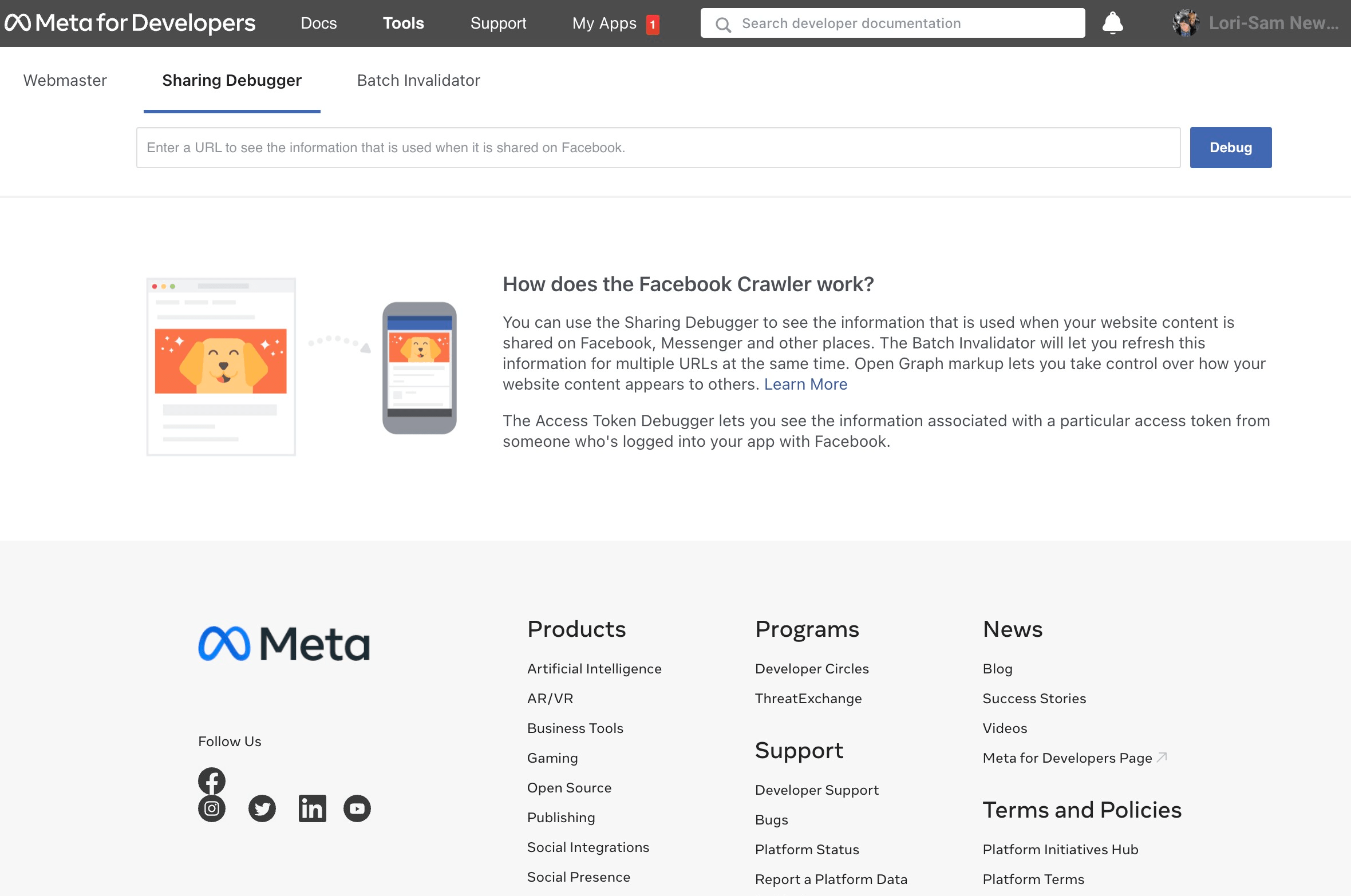
To use Facebook Debugger for Facebook API troubleshooting, follow these steps:Visit the Facebook Debugger tool online.
Enter the URL of the page you're troubleshooting and click "Debug."
Review the information provided, including any warnings or errors.
Use this data to identify and resolve any issues with your Facebook API integration.
Can I use Facebook Debugger for Pinterest content?
No, the Facebook Debugger tool is specific to Facebook-related content, such as links and preview information on Facebook. It won't help with optimizing or troubleshooting content for Pinterest. For Pinterest content, use the Pinterest Rich Pins Validator or other Pinterest-specific tools.
What is the Facebook Open Graph Debugger?
The Facebook Open Graph Debugger is a tool provided by Facebook for developers and website owners to check and troubleshoot how their content appears when shared on Facebook. It helps ensure that the correct metadata is displayed, such as titles, descriptions, and images, when links are shared on the platform.
Can I use Facebook Debugger for YouTube content?
Yes, Facebook Debugger can be used for YouTube content to ensure that shared links display the correct information such as titles, descriptions, and thumbnails when posted on Facebook. By inputting the YouTube video URL into the Debugger, you can preview and optimize how the content appears on Facebook.
How do I debug Facebook login issues on iOS devices?
To debug Facebook login issues on iOS devices:
1. Verify Facebook app configuration.
2. Check iOS settings for Facebook login permissions.
3. Ensure internet connectivity.
4. Update Facebook app and iOS to the latest versions.
5. Clear cache and data for the Facebook app.
6. Restart the device and try logging in again.
What is the Facebook Debugger refresh rate?
The Facebook Debugger refresh rate varies based on how often the platform's cache is updated. Changes might be reflected immediately, within a few days, or up to a week, depending on the specific circumstances and the urgency of the update.
What are Facebooks best practices for debugging and testing?
Facebook's best practices for debugging and testing include:Utilizing automated testing frameworks and tools.
Conducting extensive testing across various devices and browsers.
Implementing continuous integration and deployment pipelines.
Leveraging monitoring and analytics for real-time issue detection.
How do I clear Facebook Debugger cache?
To clear the Facebook Debugger cache, input the URL into the sharing debugger tool and click "Debug." Then, select "Scrape Again" to refresh the cache with updated information. This process ensures the most recent content appears when sharing the URL on Facebook.
Can I use Facebook Debugger for Instagram debugging?
Yes, Facebook Debugger can be used for Instagram debugging as they are both under the Facebook umbrella. You can enter the Instagram URL in the tool to troubleshoot issues related to how the content appears when shared on Facebook or Instagram. The Debugger can provide insights into how these platforms interpret the shared information.
What are common Facebook debug errors and their solutions?
Common Facebook debug errors include scraping issues, incorrect Open Graph tags, and expired access tokens. Troubleshoot by ensuring proper tag implementation, refreshing the cache, and updating permissions. Engage with Facebook's Sharing Debugger tool for further insights and solutions.
What is the purpose of Facebooks Debugger?
The purpose of Facebook's Debugger tool is to troubleshoot and fix issues with how content appears when shared on Facebook, ensuring proper display of titles, descriptions, and images for a better user experience and more accurate preview of shared links.
How do I debug Facebook login issues on my website?
To debug Facebook login issues on your website:
1. Check Facebook Developer settings for app configuration.
2. Monitor error logs for any specific error messages.
3. Verify domain and redirect URL settings on both Facebook and your website.
4. Test login process on different devices and browsers.
5. Ensure SSL certificate is valid and correctly configured.
What is the Facebook Debugger tool used for?
The Facebook Debugger tool is used to troubleshoot and optimize how content appears when shared on Facebook. It helps identify and resolve issues with metadata, images, and preview text that may affect how a link is displayed on the platform, ensuring accurate and visually appealing content previews.
How do I debug Facebook SDK initialization errors?
To debug Facebook SDK initialization errors, ensure proper configuration in the app settings, check for correct app ID and bundle identifier matching the ones registered on Facebook's developer platform, review error messages from logs or console, and verify network connectivity for SDK initialization.
How do I debug Facebook Live streaming issues?
To troubleshoot Facebook Live streaming issues efficiently, you can:Check your internet connection stability.
Restart the broadcasting device and application.
Ensure the browser/software is up to date.
Verify sufficient hardware resources.
Reset stream keys if needed.
Contact Facebook support for further assistance.
Can Facebook Debugger help with Facebook pixel issues?
Yes, the Facebook Debugger tool can assist in troubleshooting Facebook pixel issues by providing insights into pixel events and assisting in verifying proper pixel implementation on the website. It can also help in identifying and resolving any errors related to the Facebook pixel setup.
What is the difference between Facebook Debugger and Facebook Linter?
Facebook Debugger and Facebook Linter are both tools used for debugging and optimizing Open Graph meta tags on websites. However, Facebook Debugger is a web tool specifically designed for previewing how a link will look when shared on Facebook, while Facebook Linter is a command-line tool for developers to analyze and validate Open Graph meta tags on web pages.
How to debug Facebook JavaScript SDK errors on my website?
To debug Facebook JavaScript SDK errors on your website, follow these steps:Check the browser console for error messages.
Ensure the SDK is loaded correctly and initialized.
Review your code for any syntax or integration issues.
Refer to Facebook's developer documentation for troubleshooting tips.
How to debug Facebook audience network errors in my app?
To debug Facebook Audience Network errors in your app, follow these steps:Review integration to ensure proper SDK implementation.
Check ad placements and ad unit IDs in your app's code.
Monitor Facebook's Developer Dashboard for reported errors.
Test on different devices and network connections for consistency.
Reach out to Facebook support for assistance if needed.
How do I debug Facebook authorization flow issues?
To debug Facebook authorization flow issues, check the app settings for correct configurations, review the code for errors, monitor network requests, use Facebook's tools like the Graph API Explorer or Webhooks, and leverage error messages for insights. Testing on multiple devices can also help uncover inconsistencies.
How do I debug Facebook social plugins on my website?
To debug Facebook social plugins on your website, you can use the Facebook Sharing Debugger tool. Enter your website URL, and the tool will provide insights into any issues with the plugins, such as missing tags or errors, helping you troubleshoot and optimize their performance.
How do I check for errors with Facebook Debugger?
To check for errors using Facebook Debugger:
1. Go to the Facebook Sharing Debugger tool on their website.
2. Enter your URL and click "Debug."
3. Review any errors or warnings displayed.
4. Fix the issues on your website and re-scrape the URL for updates, if necessary.
Can I use Facebook Debugger for LinkedIn content?
Facebook Debugger is specifically designed for debugging and optimizing content on Facebook. While it might provide some insights for generic web content, its primary functionality is tailored for Facebook posts and links. For analyzing and optimizing LinkedIn content, it's best to utilize LinkedIn-specific tools or features for accurate results and recommendations.
What are common Facebook Debugger errors and fixes?
Some common Facebook Debugger errors include missing or expired tags, unreachable URLs, and caching problems. To fix these issues, ensure tags are correctly implemented, verify URL accessibility, and use the "Scrape Again" feature or clear cache to refresh data.
How do I scrape new information with Facebook Debugger?
To scrape new information with Facebook Debugger, follow these steps:Go to the Facebook Debugger tool on the Facebook for Developers website.
Enter the URL you want to scrape in the provided field.
Click on the "Debug" button to fetch the latest information about the URL.
Review and update the scraped data as needed.
How to debug Facebook ad tracking issues in Google Analytics?
To debug Facebook ad tracking issues in Google Analytics, follow these steps:Check that the Facebook pixel is correctly implemented on your website.
Use the Facebook Pixel Helper Chrome extension to verify pixel firing.
Ensure UTM parameters are correctly appended to your ad URLs for tracking.
Analyze the data in Google Analytics to identify discrepancies or missing data points.
Use Google Tag Assistant to troubleshoot any potential tracking issues on your website.
What does scrape mean in Facebook Debugger?
In Facebook Debugger, "scrape" refers to the process of fetching the latest information from a URL provided to ensure that the shared content appears correctly on Facebook, including the preview image, title, and description. This helps users see an accurate preview when sharing links on the platform.
What are Facebook Debuggers most common usage scenarios?
Facebook Debuggers are primarily used to troubleshoot issues with shared links, preview how content will appear when shared on Facebook, check for metadata errors, and ensure that the correct information is displayed when a link is shared on the platform.
Can Facebook Debugger help with Facebook app review issues?
The Facebook Debugger tool can assist in resolving Facebook app review issues by identifying and fixing any errors in the app's metadata and content that may affect the review process. By ensuring that the app's information is correctly formatted and optimized, developers can improve their chances of successful app review and approval.
Can I use Facebook Debugger for Instagram content?
Yes, you can use the Facebook Debugger tool for Instagram content. By entering the URL of the Instagram post, the debugger can scrape and provide information on how the content appears when shared on Facebook, optimizing its visibility and preview.
How do I access the Facebook Debugger tool?
To access the Facebook Debugger tool, open a web browser and visit the Facebook Debugger page on the Facebook Developers website. Enter the URL of the page you want to debug in the provided field, then click on the "Debug" button. The tool will then analyze the URL and provide you with information on how Facebook sees that particular webpage, including any errors or warnings that may affect its appearance when shared on Facebook.
How do I clear Facebooks cache using the Debugger?
To clear Facebook's cache using the Debugger, follow these steps:Open the Facebook Debugger tool website.
Enter the URL you want to clear the cache for.
Click "Debug" to scrape the latest data and clear the cache.
How to debug Facebook pixel tracking on my website?
To debug Facebook pixel tracking on your website, follow these steps:Use Facebook Pixel Helper browser extension to check for pixel firing.
Check the pixel code implementation on your website for errors or missing parts.
Use Facebook Events Manager to monitor pixel events and troubleshoot any issues.
Check if the pixel is firing correctly by testing different scenarios on your site.
Contact Facebook support for advanced troubleshooting if needed.
How do I debug Facebook OAuth authentication errors?
To debug Facebook OAuth authentication errors, you can:Check your app settings and credentials in the Facebook Developer portal.
Review error messages for clues in your application or server logs.
Ensure your redirect URIs and scopes are correctly configured.
Verify that your app is correctly handling OAuth responses.
What are Facebook Debuggers limitations and workarounds?
When using the Facebook Debugger tool, limitations may include incomplete data fetches, cache issues, and delays in reflecting changes. Workarounds could involve force-refreshing the cache, ensuring accurate meta tags, and accessing the tool at off-peak times for better functionality.
How do I debug Facebook share button issues on my website?
To debug Facebook share button issues on your website, follow these steps:Check for any errors in the Facebook Sharing Debugger tool.
Ensure your website's metadata is correctly set up.
Verify that your website is accessible and not restricted.
Clear cache and refresh your website to see changes reflected.
Test the share button on different devices and browsers.
Can I use Facebooks Web Debugger for Chrome?
Yes, you can use Facebook's Web Debugger for Chrome, also known as the Facebook Sharing Debugger, to troubleshoot and debug issues with the information that appears when you share your website on Facebook. It helps validate proper Open Graph meta tags and preview how your content will appear on the platform.
How do I debug Facebook Messenger Bot development issues?
When encountering Facebook Messenger Bot development issues, start by checking webhook settings, verifying app configuration, reviewing code for errors, and testing with Facebook's Graph API Explorer. Utilize error logs, ask on developer forums, and consider consulting Facebook's documentation or seeking professional help if needed.
How do I fix Facebook Debugger errors?
To fix Facebook Debugger errors:Check the URL for issues like redirects or blocked content.
Use the Debugger tool to refresh the cache.
Ensure meta tags are correctly set up.
Verify Open Graph tags for accuracy.
Submit the URL to re-scrape for updated information.
What tools does Facebook provide for debugging apps?
Facebook provides a range of tools for debugging apps, including Facebook Login and Graph API for authentication, Business Manager for managing accounts, Developer Dashboard for monitoring app performance, and Facebook Analytics for tracking user engagement and behavior. Additionally, Facebook offers a robust support system and documentation to assist developers with troubleshooting and resolving issues efficiently.
How to debug Facebook messenger bot JavaScript errors?
To debug Facebook Messenger bot JavaScript errors, follow these steps:Check console logs for error messages.
Review your code for syntax errors.
Test in the Messenger platform for specific issues.
Use a debugger tool like Chrome DevTools for in-depth inspection.
How do I debug Facebook user authentication issues?
When debugging Facebook user authentication issues, first check app settings for accurate configurations. Review the OAuth redirect URI, ensure app secrets are secure, and confirm the API permissions. Utilize Facebook's Graph API Explorer for testing and monitor server logs for errors to troubleshoot effectively.
Can I debug Facebook API requests using Graph API Explorer?
Yes, you can debug Facebook API requests using Graph API Explorer. This tool allows developers to test and troubleshoot their API calls by providing insights into the response data, errors, and parameters used in the requests. It helps in identifying issues and refining API interactions for better integration.
Can I debug Facebook app requests using Facebooks Request Debugger?
Yes, you can debug Facebook app requests using Facebook's Request Debugger tool. This tool allows you to analyze and troubleshoot requests made by your app, helping you identify and solve any issues affecting the functionality of your Facebook integration. By using the Request Debugger, you can inspect the requests' parameters, responses, and errors to ensure smooth operation and optimal performance of your Facebook app.
What information does Facebook Debugger provide about my website?
The Facebook Debugger provides insights on how Facebook interprets and displays your website content, including information on title, description, images, and potential issues with meta tags or Open Graph tags. It helps ensure accurate presentation when shared on Facebook.
What is Facebook Debuggers character limit?
The character limit for the Facebook Debugger tool is 5000 characters. This tool helps validate and troubleshoot Open Graph tags on websites for proper sharing on Facebook. Checking your meta tags within this character limit ensures correct display on social media platforms.
How do I fix Facebook Debugger Failed to scrape errors?
To address Facebook Debugger scraping errors, follow these steps:
1. Ensure the URL is publicly accessible.
2. Use the "Fetch New Scrape Information" button.
3. Debug Open Graph tags with the Sharing Debugger.
4. Clear cached data.
5. Check for server-side issues.
How do I troubleshoot Facebook Debugger issues?
To troubleshoot Facebook Debugger issues, ensure correct tags in HTML, use Open Graph protocol, test URLs in the tool, clear cache, ensure website access, check robots.txt, and contact Facebook support if needed.
How do I use Facebooks Debug tool for sharing issues?
To resolve sharing issues on Facebook, utilize the Facebook Debug Tool by entering the URL causing the problem, clicking "Debug," and then "Scrape Again" to refresh the metadata. Review the updated information to ensure accurate sharing previews on Facebook.
Why is Facebook Debugger not working for me?
Facebook Debugger may not work due to cache issues with the URL, server problems, incorrect URL formatting, or API changes. Clear the cache, validate the URL in a correct format, ensure the server allows access, verify API compatibility, and check for recent updates from Facebook.
How do I update information with Facebook Debugger?
To update information with Facebook Debugger, navigate to the tool and enter the URL you want to refresh. Click "Debug" to fetch the latest data from the site. If needed, use the "Scrape Again" button for real-time updates, ensuring accurate content preview and sharing details on Facebook.
How do I debug a Facebook login issue on my website?
To debug a Facebook login issue on your website, follow these steps:Check the Facebook Developer platform for any reported issues.
Review your website's configuration for any errors or mismatched settings.
Ensure your website's integration with the Facebook login API is correctly implemented.
Verify that the Facebook app ID and secret key are correctly set up in your website's code.
Test the login functionality on different browsers and devices to identify any specific issues.
Monitor the browser console for any error messages related to the Facebook login process.
How is Facebook Debugger refresh rate determined?
The Facebook Debugger refresh rate is determined by the cache expiration time set by Facebook for their server-side cache. Facebook systems periodically re-cache the information based on this expiration time to ensure accurate and updated data for the shared link previews.
Can Facebook Debugger resolve image display issues?
Yes, Facebook Debugger can help resolve image display issues by refreshing the cached image data and providing insights on image quality, aspect ratio, and dimensions that can impact how the image is displayed on social media platforms.
Does Facebook Debugger support iFrame content debugging?
Yes, Facebook Debugger can debug iFrame content by entering the iFrame URL in the tool. It provides insights on how the iFrame is displayed and allows for troubleshooting of any issues or discrepancies that may arise with the iFrame content on Facebook.
What errors can Facebook Debugger identify on pages?
Facebook Debugger can identify various errors on pages such as missing meta tags, incorrect image sizes, SSL certificate issues, and outdated caching information. Running the URL through the debugger helps detect and resolve these issues for improved social sharing.
Is Facebook Debugger useful for event tracking issues?
Yes, Facebook Debugger is useful for diagnosing event tracking issues. It can help identify and fix problems with Open Graph tags, ensure proper metadata parsing, and verify event pixel implementation for accurate tracking and data reporting. Using the tool can enhance the overall effectiveness of event tracking on Facebook platforms.
How does Facebook Debugger handle outdated Open Graph tags?
Facebook Debugger updates outdated Open Graph tags by fetching the latest information from the provided URL. Users can enter the URL in the debugger tool, which triggers a re-scrape of the page, refreshing the displayed content on Facebook. This process ensures accurate and current information is displayed when sharing the URL on the platform.
Can Facebook Debugger detect missing meta tags on pages?
Yes, Facebook Debugger can detect missing meta tags on pages by simply entering the page URL into the tool. It will display any issues found with meta tags, allowing users to optimize their content for social media sharing.
Does Facebook Debugger provide mobile view debugging options?
No, Facebook Debugger does not provide specific mobile view debugging options. It focuses on providing insights into how shared links will appear on Facebook platforms but doesn't offer device-specific debugging capabilities for mobile views.
How often does Facebook Debugger update scraped content?
Facebook Debugger updates scraped content approximately every 30 days. However, if significant changes occur on the website, forcing a recrawl can be done manually using the "Scrape Again" feature in the tool.
Can Facebook Debugger interpret dynamic URL parameters correctly?
Yes, Facebook Debugger can interpret dynamic URL parameters correctly. It allows you to see how Facebook sees your URL with specific parameters, ensuring accurate previews when sharing links on the platform. Make sure to test and validate your dynamic URLs for optimal performance on social media.
Is Facebook Debugger effective for internationalization debugging?
Facebook Debugger is effective for internationalization debugging as it helps preview how shared links appear globally, identifies language-specific issues, and ensures accurate metadata display across regions. Additionally, it enables testing localized content and troubleshooting any discrepancies before publishing.
How does Facebook Debugger assist with canonical URL issues?
Facebook Debugger helps identify and troubleshoot canonical URL issues by showing how the platform interprets and displays shared URLs. It ensures accurate thumbnail images, titles, and descriptions, pinpointing problems for resolution and optimal content presentation on Facebook.
Can Facebook Debugger reveal problems with video embedding?
Yes, the Facebook Debugger can help identify issues with video embedding by providing insights into how Facebook interprets the video, showing any errors or warnings that may affect its display, and offering suggestions for optimization to ensure proper playback and visibility on the platform.
Does Facebook Debugger identify issues with link preview generation?
Yes, Facebook Debugger identifies issues with link preview generation by providing insights on how the platform interprets the content shared through the link, including errors in metadata, rendering, and image optimization. Users can input the URL and view the preview to troubleshoot and improve their links for better engagement on Facebook.
How can Facebook Debugger aid in fixing incorrect page redirects?
Facebook Debugger can help fix incorrect page redirects by providing real-time analysis and debugging for URLs shared on the platform. It allows you to view how Facebook interprets your links, identify issues causing incorrect redirects, and refresh the cache to ensure the latest information is displayed accurately across Facebook. By utilizing this tool, users can troubleshoot and resolve redirection problems efficiently.
Can Facebook Debugger be automated for batch URL processing?
Yes, Facebook Debugger can be automated for batch URL processing using the API or custom scripts. Tools like PhantomJS or Selenium can help automate the process efficiently. Additionally, utilizing APIs for bulk URL submissions can streamline the debugging for multiple URLs at once.
Does Facebook Debugger support debugging of age-restricted content?
Yes, Facebook Debugger can debug age-restricted content if the appropriate age and country restrictions are set in the Open Graph tags on the webpage. By specifying these restrictions, the Debugger can accurately display how the content will appear based on the specified audience criteria.
How to interpret warnings issued by Facebook Debugger?
To interpret warnings from Facebook Debugger, focus on the specific issue highlighted, address it directly on your webpage, ensure proper meta tags are present, fix any errors causing warnings, and re-scrape the URL for validation. Reviewing the debugger's response can offer insights for optimizing content.
Can Facebook Debugger improve ad delivery through better previews?
Yes, Facebook Debugger can enhance ad delivery by ensuring accurate previews, detecting and fixing errors, improving metadata visibility, and optimizing content for engagements based on the validated information displayed in the tool.